Getting Started
Install the WOZCODE plugin for Claude Code in under a minute.
Quick Start
Run these commands in Claude Code to get started.

Updates & Reinstall
Keep your plugin up to date.
/woz update fails (older plugin versions use /woz-update instead — try that first), run these two commands manually:
Benchmark Your Savings
Want proof? Run a side-by-side comparison of WOZCODE vs vanilla Claude Code on your own codebase. Each prompt runs twice — once with WOZCODE, once without — so you can see exactly how much you save in cost, tokens, turns, and time.
Quick Start
Install WOZCODE for Superset. Run this command in your terminal.
Updates & Reinstall
Keep your plugin up to date.
/woz update fails (older plugin versions use /woz-update instead — try that first), run these two commands manually:
Quick Start
Set up WOZCODE in Claude Code Desktop. Run the install command below in your terminal.
woz:code.Updates & Reinstall
Keep your plugin up to date.
/woz update fails (older plugin versions use /woz-update instead — try that first), run these two commands manually:
Quick Start
Follow these steps inside the Claude panel in VS Code desktop.
Updates & Reinstall
Use these steps if you need to refresh or re-add the Woz marketplace in VS Code.
Quick Start
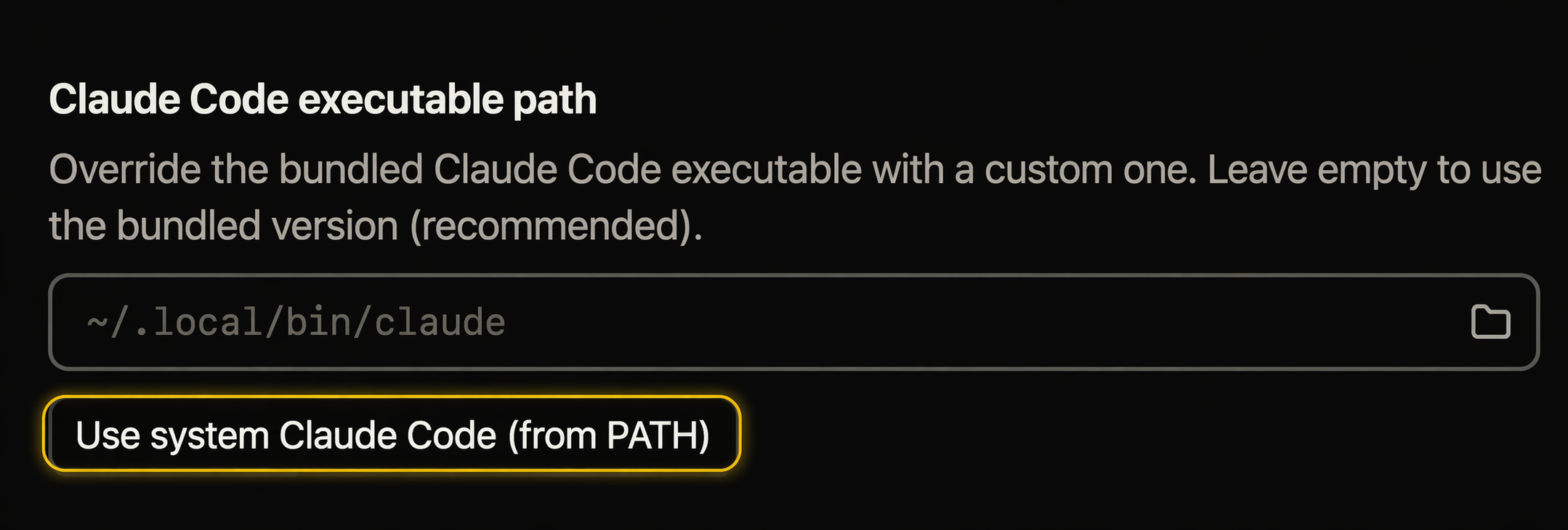
Connect WOZCODE to Conductor.
woz:code.Updates & Reinstall
Keep your plugin up to date.
/woz update fails (older plugin versions use /woz-update instead — try that first), run these two commands manually:
Quick Start
Set up WOZCODE on Windows. We recommend WSL — PowerShell works too.
Native PowerShell
Updates & Reinstall
Keep your plugin up to date.
/woz update fails (older plugin versions use /woz-update instead — try that first), run these two commands manually:
CLI Reference
| Command | Description |
|---|---|
| npx @wozcode/install | Install or reinstall the WOZCODE plugin (one-line installer) |
| /woz status | Check authentication status |
| /woz login | Log in to your Woz account |
| /woz logout | Clear credentials |
| /woz-recall | Recall saved context and preferences |
| /woz-savings | Show estimated savings report (roundtrips, time, tokens, cost) |
| /woz benchmark | Run a side-by-side cost comparison of WOZCODE vs vanilla Claude Code on your repo |
| /woz settings | Configure WOZCODE plugin settings |
| /woz update | Update the WOZCODE plugin to the latest version |
| claude plugin marketplace update wozcode-marketplace | Manually update the Woz marketplace (also a fallback when /woz update is unavailable) |
| claude plugin install woz@wozcode-marketplace | Install or reinstall the Woz plugin from the marketplace |
| claude plugin update woz@wozcode-marketplace | Update the installed Woz plugin to the latest version (also a fallback when /woz update is unavailable) |
| /plugin marketplace add WithWoz/wozcode-plugin | Add the Woz marketplace (slash-command, run inside a Claude Code session) |
| /plugin install woz@wozcode-marketplace | Install the Woz plugin (slash-command, run inside a Claude Code session) |
| /reload-plugins | Reload plugins to get latest updates |
| /woz | Show all available WOZCODE commands |
| claude plugin disable woz@wozcode-marketplace | Temporarily disable the plugin |
| claude plugin enable woz@wozcode-marketplace | Re-enable the plugin |
| claude plugin marketplace remove wozcode-marketplace | Remove the plugin from marketplace |
| claude --agent woz:code | Launch Claude Code with WOZCODE agent explicitly |
| wozcode status | Check authentication status from your terminal |
| wozcode login | Log in to your Woz account from your terminal |
| wozcode logout | Clear credentials from your terminal |
| wozcode conductor | Print the WOZCODE executable path for Conductor |
| wozcode benchmark | Run a side-by-side cost comparison of WOZCODE vs vanilla Claude Code on your repo |